For decks that stand still
Animate PowerPoint with AI: one click, the whole deck
Upload your .pptx, click "Animate" in the editor and pick a style. Slaide choreographs every slide: entrances, text builds, transitions and Morph. You see it right away in the presentation and export it as PowerPoint.
Free account, no credit card. After signing up you upload your .pptx (up to 30 MB). Updated .
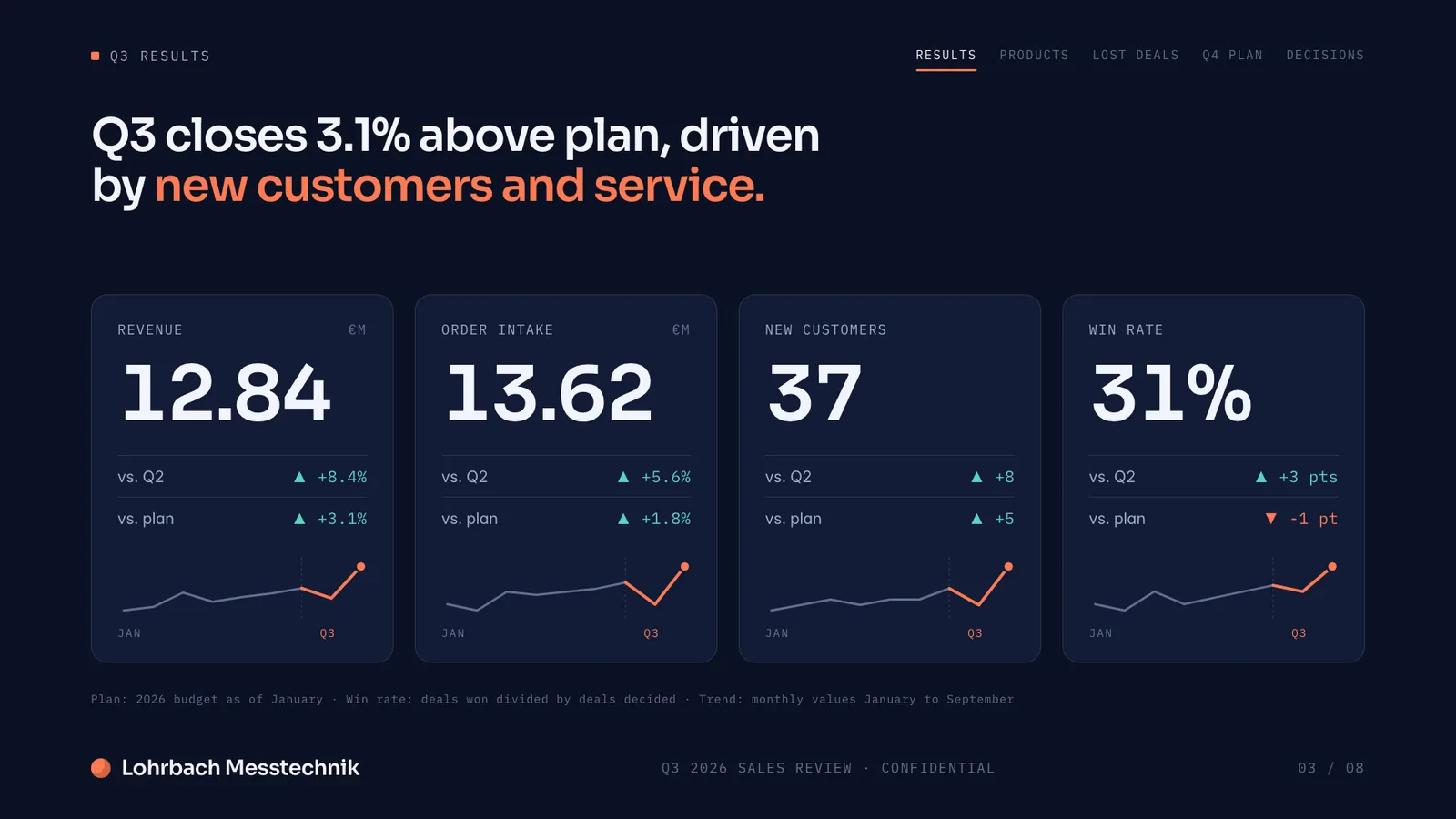
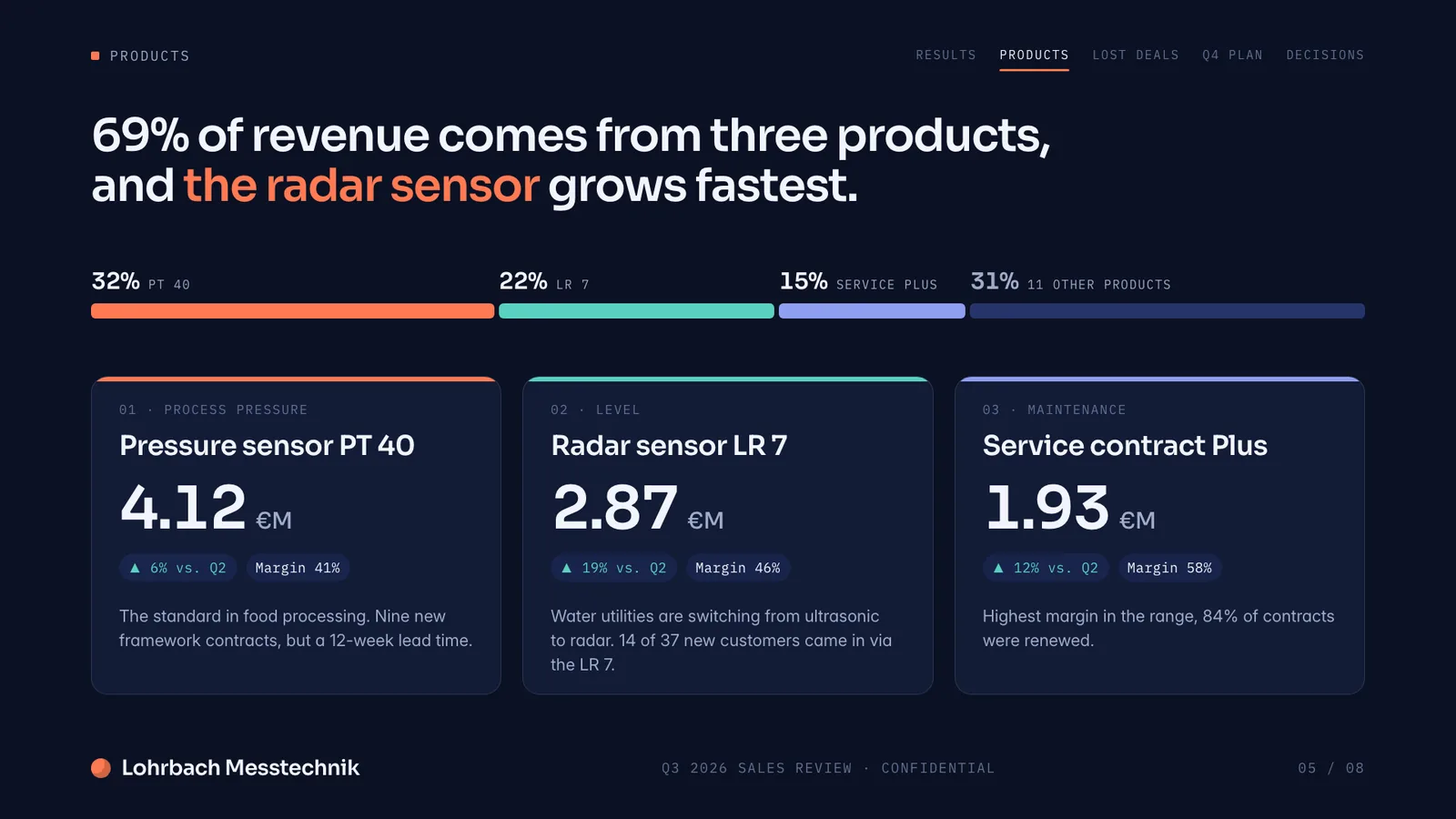
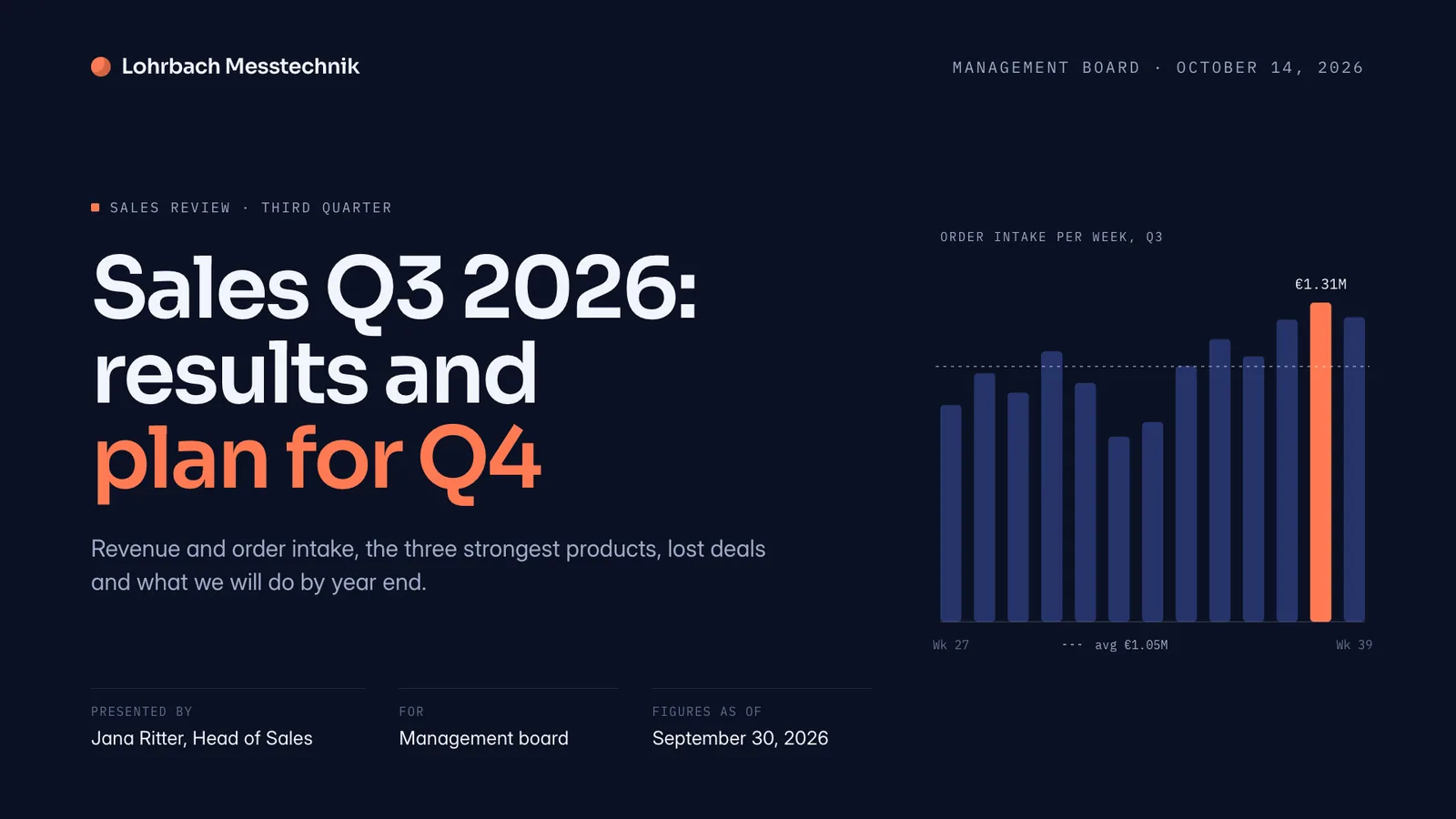
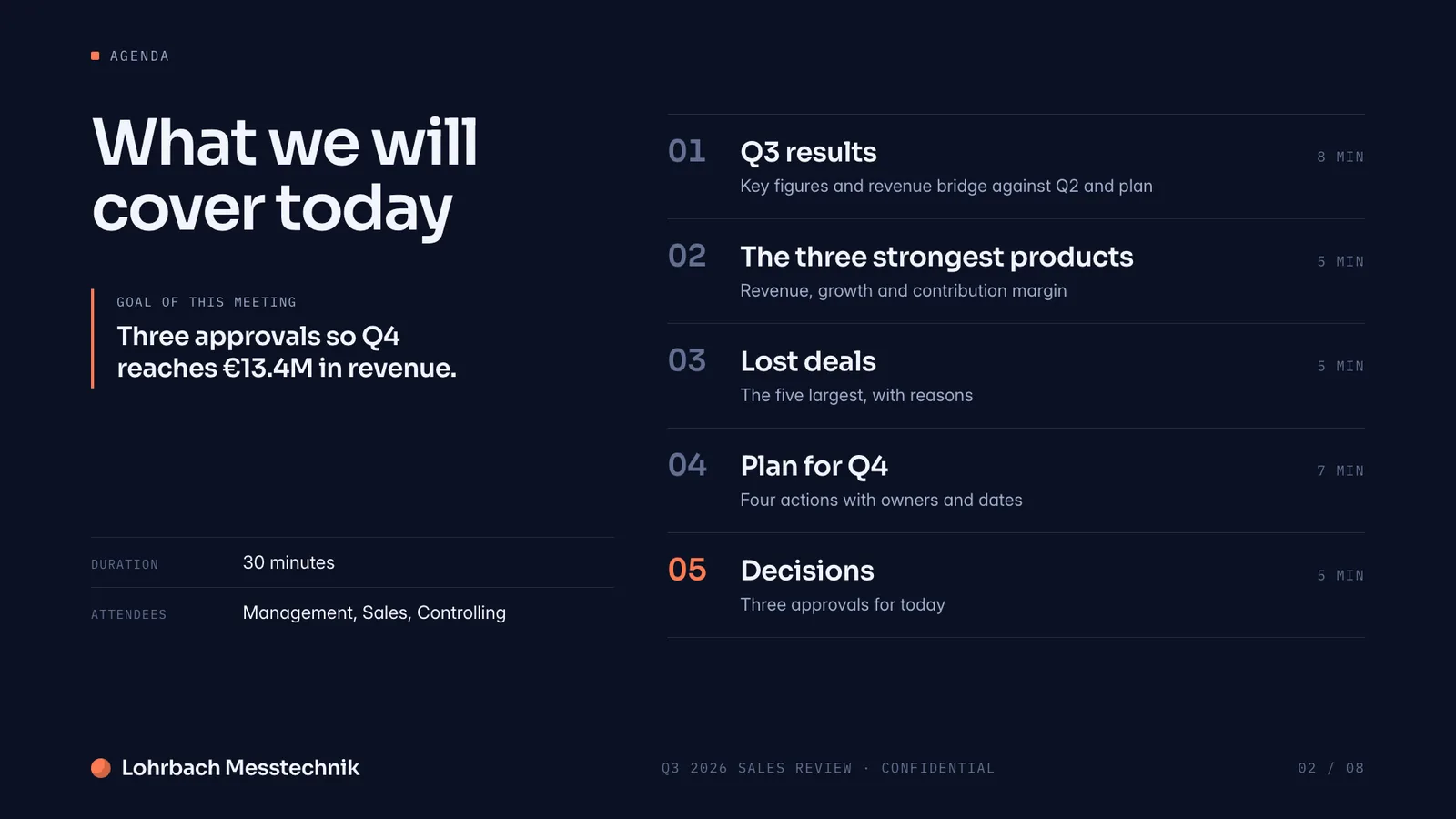
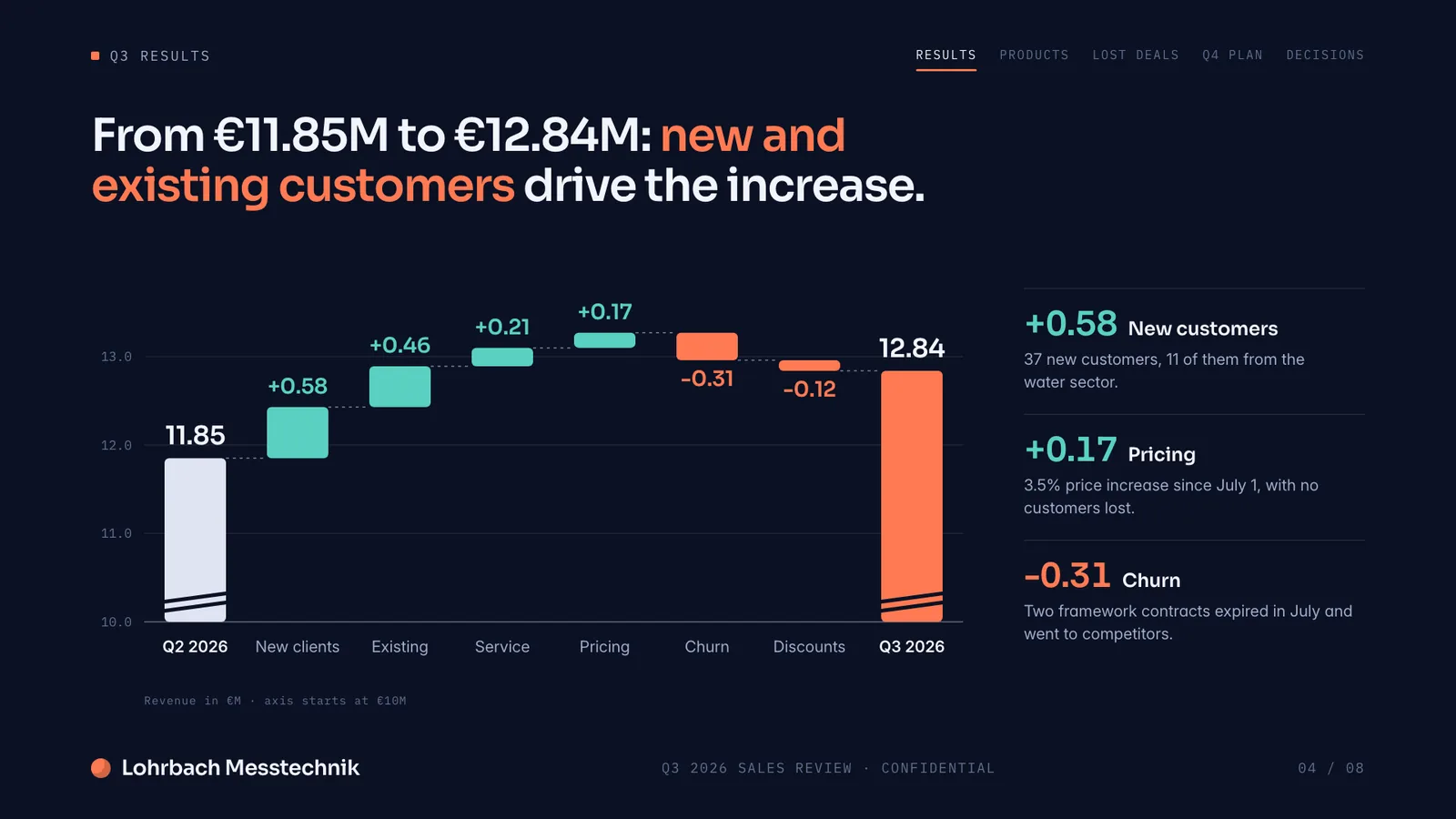
Example presentation for a fictional company. Names and numbers are sample valuesSee all 8 slidesExample in detail
To animate a PowerPoint with AI, upload the .pptx (up to 30 MB) to Slaide and click "Animate" in the editor header. You pick one of three styles (Keynote, Balanced or Minimalist), and the assistant adds entrances, text builds, slide transitions and morphs across the whole deck in one run. You see the result right away in the presentation, in the public link and, after the export, in PowerPoint as real animations and transitions. The run does not change text, pictures or layout.
What Slaide slides look like
Still frames of an invented quarterly report. You see the motion itself only in the presentation: it lives in the document as animation, not in the pictures.
Animate PowerPoint automatically: what the assistant sets
You pick the style, the assistant reads every slide and writes the motion for it. These are its building blocks.
Entrances
Elements fade, slide, grow, zoom, flip, reveal or draw themselves in. The assistant picks what fits each element's role: a title differently from a picture.
Text that builds
A heading or paragraph enters word by word, character by character or line by line. A list of four points becomes four steps.
Click steps
The first step plays by itself when the slide starts, later steps wait for your click. That way you decide during the talk when the next point arrives.
Slide transitions
Fade, slide, push, zoom, wipe, rise, iris or flip between two slides, or a deliberate hard cut. The assistant keeps them consistent across the deck so the talk gets a rhythm.
Morph between slides
If an object appears on two consecutive slides, it glides from its old position and size to the new one. In the PowerPoint export this becomes the Morph transition.
Three styles instead of a hundred dials
Keynote, Balanced or Minimalist: the style sets the motion budget of the run, from restrained to elaborately choreographed. The assistant writes the motion itself instead of picking from a fixed list.
The whole deck in one run
One click covers every slide. You do not open each slide on its own or work an animation pane.
Watch and share right away
After the run Slaide starts the presentation and plays the deck. Anyone who opens your public link and clicks "Present" sees the same motion.
What stays as it is
With a deck that already holds a lot of work, the most important question. The Animate run adds motion and rebuilds nothing.
How to animate your PowerPoint with AI
Upload your PowerPoint
Create a free account and choose the .pptx, up to 30 MB. Slaide reads it in and opens it as an editable document.
Click "Animate"
The editor header shows "Animate" (wand icon). The button appears for slide formats such as 16:9 or 4:3 with at least two slides, on screens wider than a phone.
Choose a style
The menu "Choose an animation style" offers Keynote, Balanced and Minimalist. The click starts the run at once; your browser remembers your choice.
Watch the presentation
The assistant shows "Choreographing animations". When the run is done, Slaide starts the presentation and plays your deck with motion.
Export as PowerPoint and check
Export the deck as PowerPoint and start the slide show there. Entrances, text builds, click steps and transitions are in as PowerPoint animations; what does not carry over is listed further down.
Which style fits your deck
All three styles animate the whole deck. They differ in how much motion the assistant uses.
| Style | What the assistant makes of it | Fits |
|---|---|---|
| Keynote | Maximum choreography with crafted morphs and entrances | Product launches, keynotes, trade-show talks |
| Balanced (default) | Clear, lively motion with a measured rhythm | Pitches, sales decks, most talks |
| Minimalist | Restrained fades, wipes and simple transitions | Board meetings, public bodies, expert talks, text-heavy decks |
Morph in PowerPoint: slides that flow into each other
Morph is a slide transition that turns matching shapes, pictures and text on two consecutive slides into each other. Position, size, colour and rotation change as one fluid movement. Typical cases are a key figure that grows from small to large, or a logo that moves into the corner.
Slaide sets Morph where the same object appears on two consecutive slides. Where nothing returns, Morph adds nothing; a fade, a wipe or a push fits better there. In the PowerPoint export the morph becomes PowerPoint's Morph transition. A PowerPoint version without Morph shows a fade at that point.
Which versions play Morph is listed in Microsoft's help (see the source below). Test your file where you present.
Limits to know before you upload
So nothing surprises you after the upload.
Test it for free on three slides
A small test tells you quickly whether the style fits your deck.
Take three slides that matter to you: one with a bullet list, one with a picture or chart, and one that refers back to the previous one. That shows fastest whether the style fits and whether Morph kicks in.
Pull those slides into their own file with the free "Split PowerPoint" tool. It runs entirely in your browser, the file is not uploaded. The same way you can leave out confidential slides first.
Run Animate with the Balanced style, watch the result in the presentation, then try Keynote and Minimalist. You can restore an earlier version from the Versions tab at any time.
Have it animated or do it yourself?
Doing it yourself pays off when it is two or three slides where one detail has to be exact: a chart that builds up just so. That is what the Animation pane in PowerPoint is for, and you can touch up Slaide's result there too.
Slaide saves the time on the grind: thirty slides, each with a title, four bullet points and a picture, in one style and with fitting transitions, with one click instead of a hundred.
Improve the content instead of the motion
Shorten, phrase more clearly, translate, put in new numbers: same file, different job.
What it costs
The free account lets you try it. Animate is a request to the assistant and counts like other requests. All plans can be cancelled any time.
Questions about animating a PowerPoint with AI
Anything missing? Ask us
How do I animate a PowerPoint with AI?
Upload the .pptx to Slaide, click "Animate" in the editor header and pick Keynote, Balanced or Minimalist. The assistant sets entrances, text builds, transitions and morphs across the whole deck, then the presentation starts. You export the result as PowerPoint with the animations.
Are these real PowerPoint animations?
In the export, yes: Slaide writes entrances, text builds, click steps and transitions into the same structures of the .pptx that PowerPoint itself uses, and you see them in its Animation pane. It is not a video. Only blur, colour changes, filters, shadows, size changes and exit animations play in Slaide alone.
Can I have my PowerPoint animated for free?
You can start with a free account, no credit card: Animate runs free on the one document that is free for you. For further documents you need a plan; what it includes is on the pricing page.
Does Animate change my text or design?
No. The run reads your slides and writes motion only. Rewording, swapping pictures or changing the layout is not part of it.
What happens to animations that are already in my file?
Slaide does not read them on import, and an Animate run replaces earlier motion. On Plus, Pro and Max, slides you do not change keep their original animations in the export; a slide that Animate touches gets Slaide's motion.
Can I animate only single slides or elements?
Not by hand: Slaide has no panel for single animations, Animate choreographs the whole deck in one run. You change the result by running Animate again with another style or restoring an earlier version. Fine-tuning you do in PowerPoint's Animation pane.
Can I undo it?
Yes. Before every run Slaide saves the previous state as a version. You restore it in the Versions tab.
Where do I see the result?
In Slaide the presentation starts after the run, and with "Present" you can watch the motion again; in your public link as well. The editor itself, PDF and PNG show slides without motion. In PowerPoint you see it after the export, in slide show mode.
Which styles are there?
Keynote (maximum choreography with crafted morphs and entrances), Balanced as the default (clear, lively motion with a measured rhythm) and Minimalist (restrained fades, wipes and simple transitions).
Can AI set slide transitions in PowerPoint automatically?
Yes. The assistant sets fade, slide, push, zoom, wipe, rise, iris, flip or a hard cut, and Morph between related slides. In the PowerPoint export each transition maps to the nearest PowerPoint transition; names can differ by PowerPoint version.
What is the Morph transition in PowerPoint?
Morph turns matching objects on two consecutive slides into each other: position, size and colour change as one fluid movement. Slaide sets it when the same object appears on two slides.
Can I export the animated PowerPoint as a video?
Slaide exports the deck as a PowerPoint file, not as a video. You create a video afterwards in PowerPoint itself with the export function in the File menu.
Does it work in Keynote and Google Slides?
Slaide builds the export for PowerPoint. If you do not present in PowerPoint, test the file on the device you present from.
Why is there no Animate button?
Animate appears for slide formats (16:9, 4:3 and HD) with at least two slides, on screens wider than a phone. It is disabled while the assistant works on the document and hidden while you edit a slide directly.
Does it work with .ppt files?
No. Open the file in PowerPoint and save it as .pptx, then upload it. Slaide rejects a .ppt on upload with exactly that hint.
What happens to my deck (GDPR)?
Your account, uploaded files and documents are stored with Supabase in the EU. To edit, your request and the content it needs go through OpenRouter (USA) to the language model; training on your content is contractually excluded, and transfers rely on the EU-US Data Privacy Framework, otherwise on standard contractual clauses. Leave out confidential slides first with the "Split PowerPoint" tool, which runs only in your browser.
How large can my file be?
Up to 30 MB per file and at most 150 slides.
Your deck, with motion
Upload, click "Animate", pick a style. Start free, no credit card.