Product help
How Slaide works: from a brief to a finished document
You describe the result. Slaide asks a few questions, shows you a page plan, builds the pages while you watch and hands you a file you can keep editing in PowerPoint, Word or as PDF.
Free: 1 document, plan up to 12 pages, first 3 built, no credit card. Plans from €7.99/mo
Slaide turns a written brief into a finished presentation or document in five steps: you describe the result, answer a few clarifying questions, approve a page plan, watch the pages being written, designed and checked, then edit and export. Presentations export as editable PowerPoint, page documents as Word, everything as PDF. The first document is free: Slaide plans up to 12 pages and builds the first 3.
Step 1: describe the result
One message is enough to start. The better it describes the occasion, the fewer assumptions Slaide has to make.
Start a new document and write what you need in the message box, the way you would brief a colleague. Name the kind of document, who it is for and what should happen after they have seen it: a sales review for the management board, a one-page offer for a client, a report for an advisory board. Add the length if it matters, the figures that must appear and the tone.
Files are optional. When the document should use your own material, attach it to the request: a PDF report, a Word draft, a spreadsheet, an existing PowerPoint, images or text files. Slaide reads them as context. If your brief contains links, Slaide reads those pages before it plans. If you name your website and ask for its look, Slaide reads colours, fonts and the logo from it.
Figures that Slaide cannot know, such as your revenue or your prices, belong in the brief or in a file. Slaide can search the web for public facts, but it does not guess internal numbers.
Step 2: answer a few questions
Before planning, Slaide asks about the points your brief leaves open. Each answer takes one click.
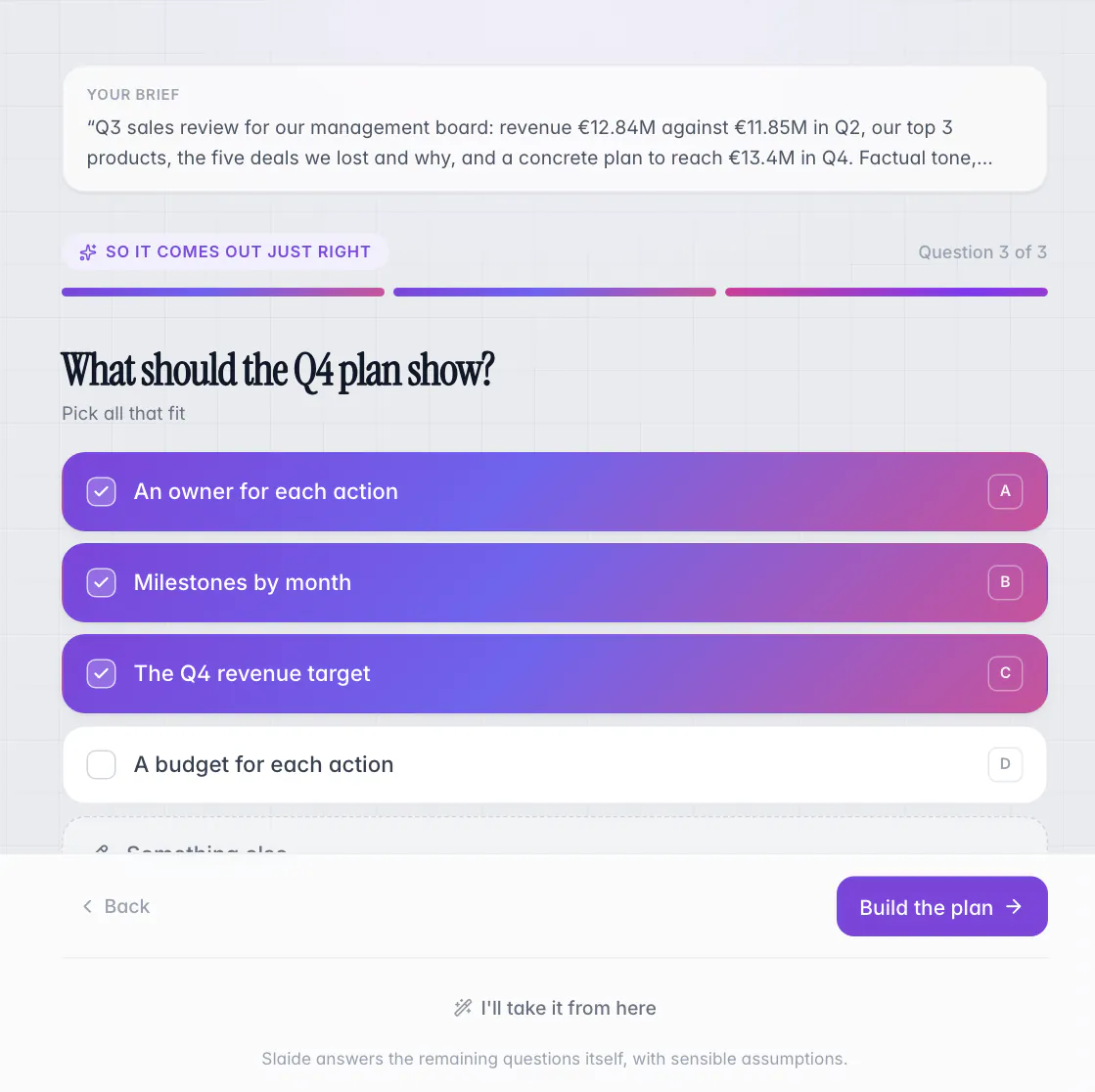
The questions appear one after another in the middle of the editor, with your brief above them. Every question comes with a few answers to choose from, and some answers carry a short note on what they would change, for example “one slide per topic, the decisions at the end”. Where several answers can apply, you tick all that fit. “Something else” lets you type your own answer, and Back takes you to the previous question.
If you would rather not answer, “I'll take it from here” lets Slaide answer the remaining questions itself with sensible assumptions. Planning can also be switched off in the start composer before you send the brief. It only runs for the first request of a document.
Step 3: check the page plan
The plan shows every page before anything is built. This is the cheapest moment to change direction.
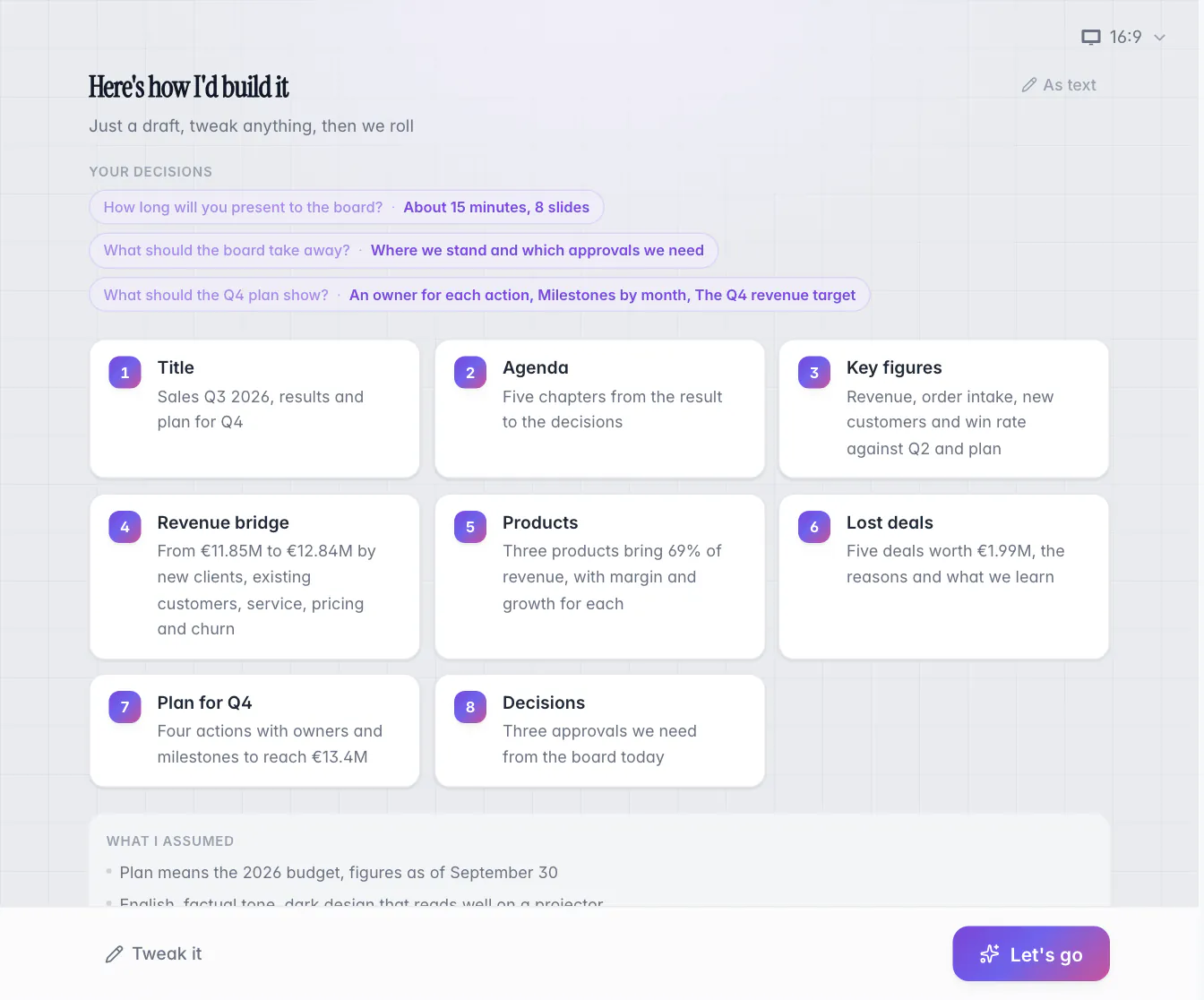
Under “Here's how I'd build it” you see your decisions from the questions, one card per page with its title and content, and what Slaide assumed where you gave no answer. The format switch above the plan sets the page format, for example 16:9 slides or A4 pages, before the build starts.
You can change the plan in three ways: edit a card directly, open the whole plan as text with “As text”, or use “Tweak it” and say in one sentence what should be different. “Let's go” approves the plan and starts the build.
On the free plan the plan still covers the whole document, up to 12 pages, and Slaide builds the first 3 of them. You see which pages are included before you approve.
Step 4: watch the pages being built
The build happens in front of you, page by page, with every step listed.
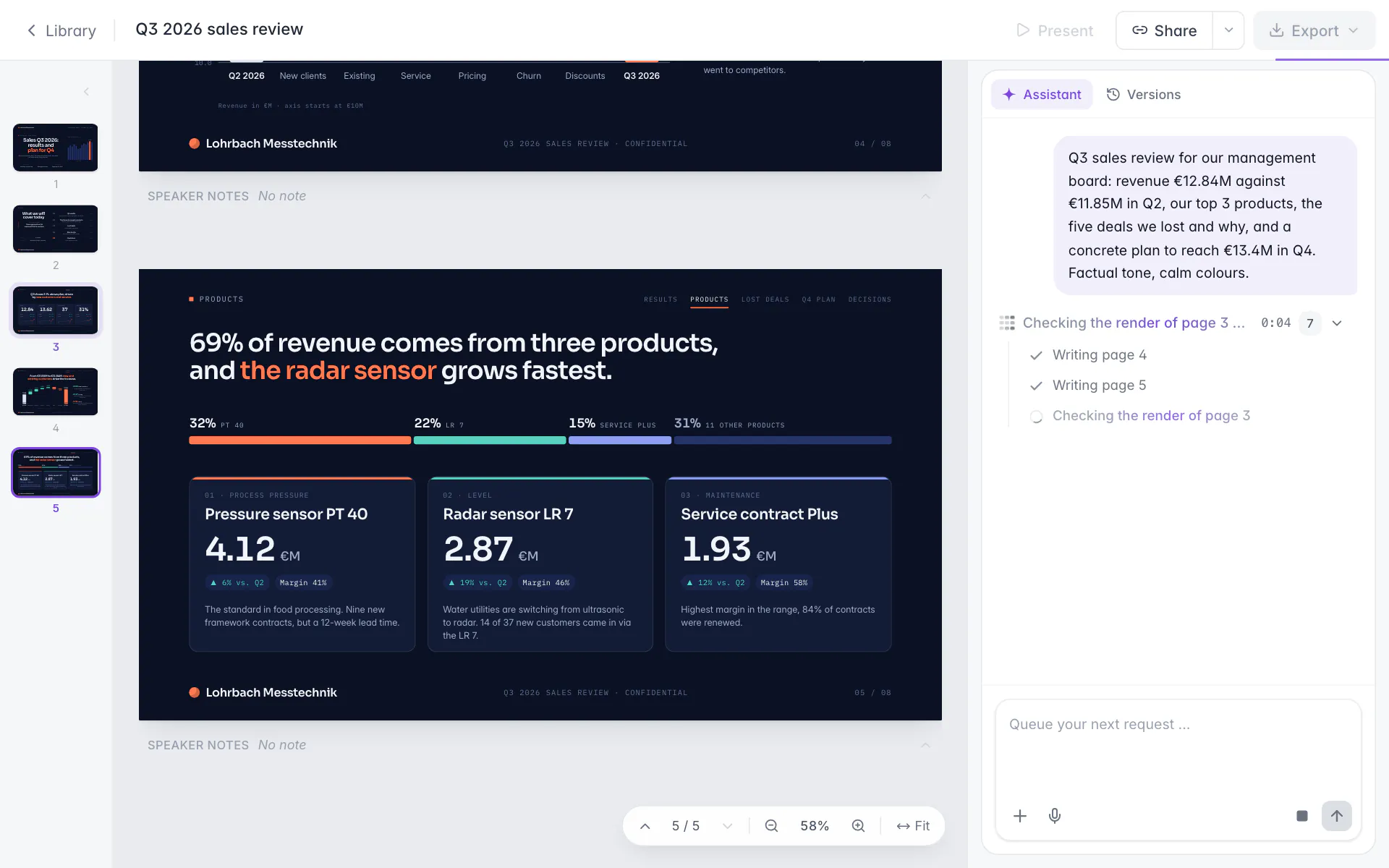
Slaide writes and designs one page after another. Each finished page appears in the page strip on the left and in the editor, so you can already read the first slides while the later ones are still being written. The assistant panel lists what is happening, such as “Writing page 5” or “Checking the render of page 3”.
The check is a real one: Slaide renders the page and looks for overflowing or clipped text, broken or blank images and weak contrast, fixes what it finds and checks again. At the end it reviews all pages together. When your request needs current public facts, you also see the web research as a step with the number of sources.
You do not have to wait. The message box stays open and queues your next request, which then runs automatically. The stop button ends the run.
Step 5: edit and export
The result is a normal document in the editor. Change what you like, then take it where it needs to go.
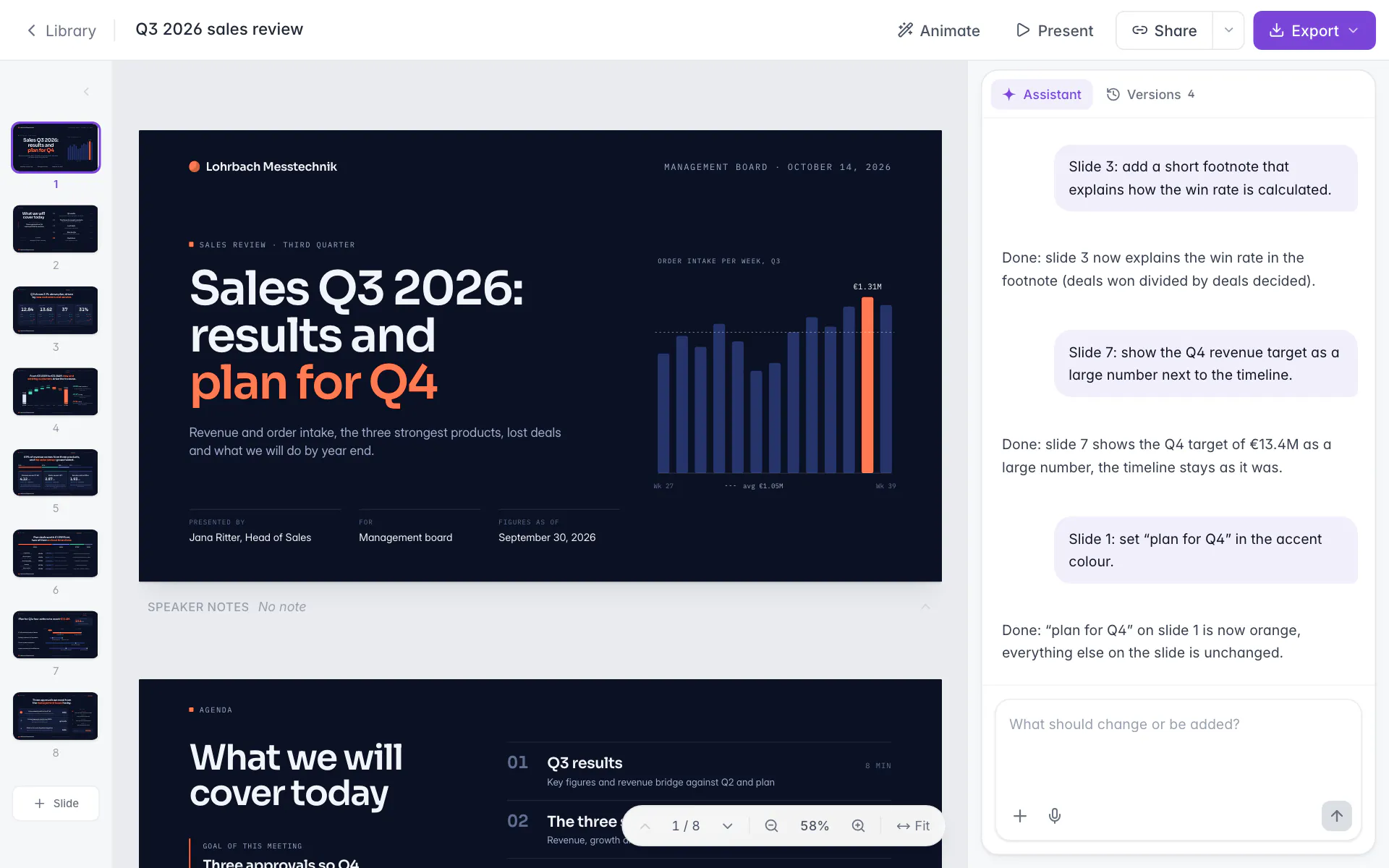
When the build is done, the assistant panel shows “Done” with the number of steps and offers Present, Copy link and, for presentations, the PowerPoint download. The document stays in your library.
From here you edit in two ways. Click any object on a page to change it directly, or ask for a change in the message box, such as “Slide 3: add a footnote that explains the win rate”. Before every AI change Slaide saves the previous state, so you can go back in the Versions tab.
Export sits at the top right. Presentations export as PowerPoint with editable text, shapes and images, page documents such as reports export as Word with real headings, lists and tables, and every document exports as PDF, PNG or JPG.
The example on this page
All screenshots show one run of the real editor, with a fictional company and fictional figures.
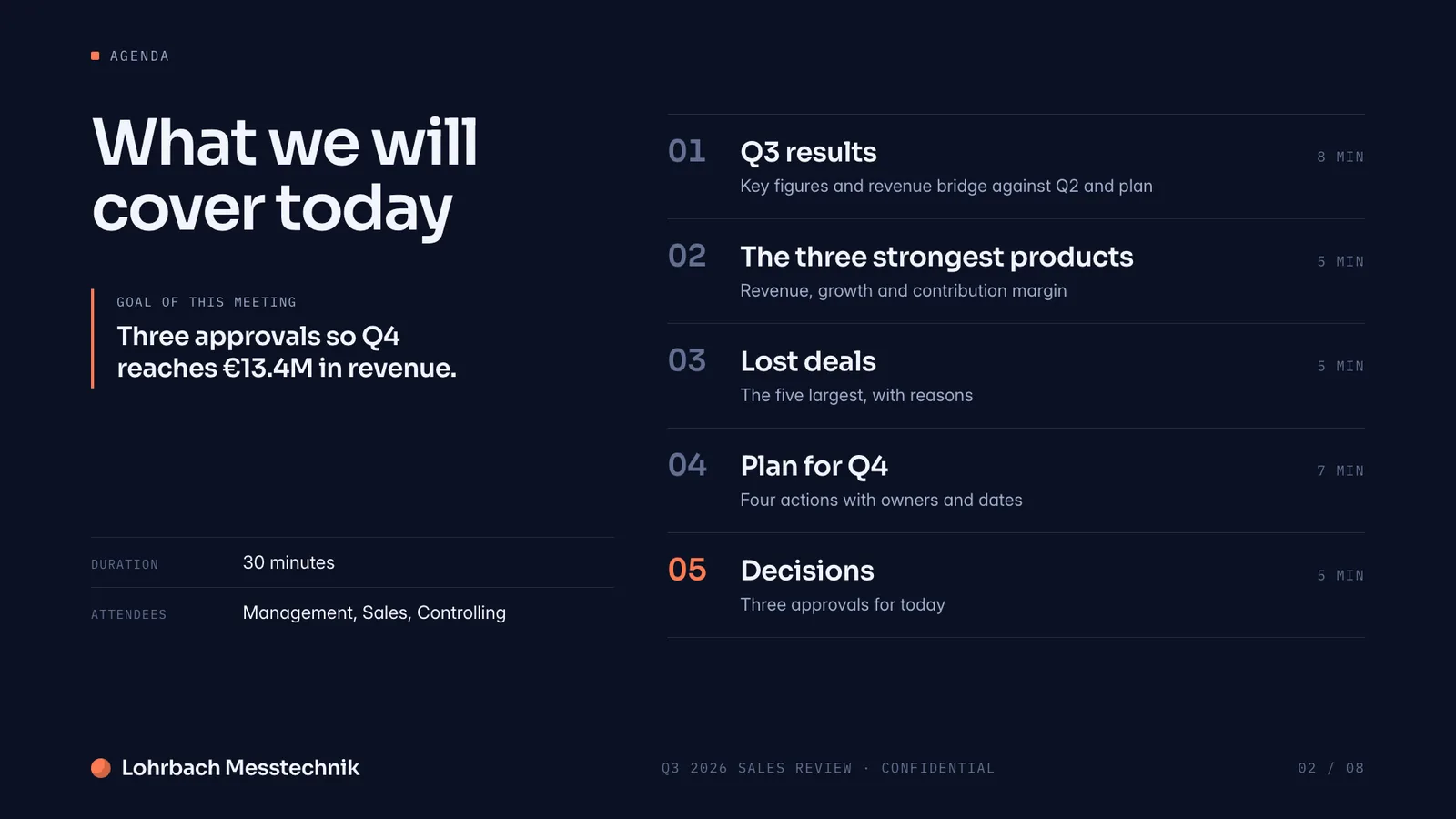
The brief asked for a Q3 sales review for the management board of a measurement technology maker: revenue against Q2 and plan, the three strongest products, the lost deals with reasons and a plan to reach the Q4 target. The three questions settled the length (about 15 minutes, 8 slides), the message (where we stand and which approvals we need) and what the Q4 plan should show (an owner for each action, milestones by month and the revenue target).
From these answers Slaide planned the eight slides below. After the build, three short requests changed single slides: a footnote that explains the win rate on slide 3, the Q4 target as a large number on slide 7 and an accent colour in the title on slide 1. Each of them created a version in the Versions tab.
| Slide | Content in the plan |
|---|---|
| 1Title | Sales Q3 2026, results and plan for Q4 |
| 2Agenda | Five chapters from the result to the decisions |
| 3Key figures | Revenue, order intake, new customers and win rate against Q2 and plan |
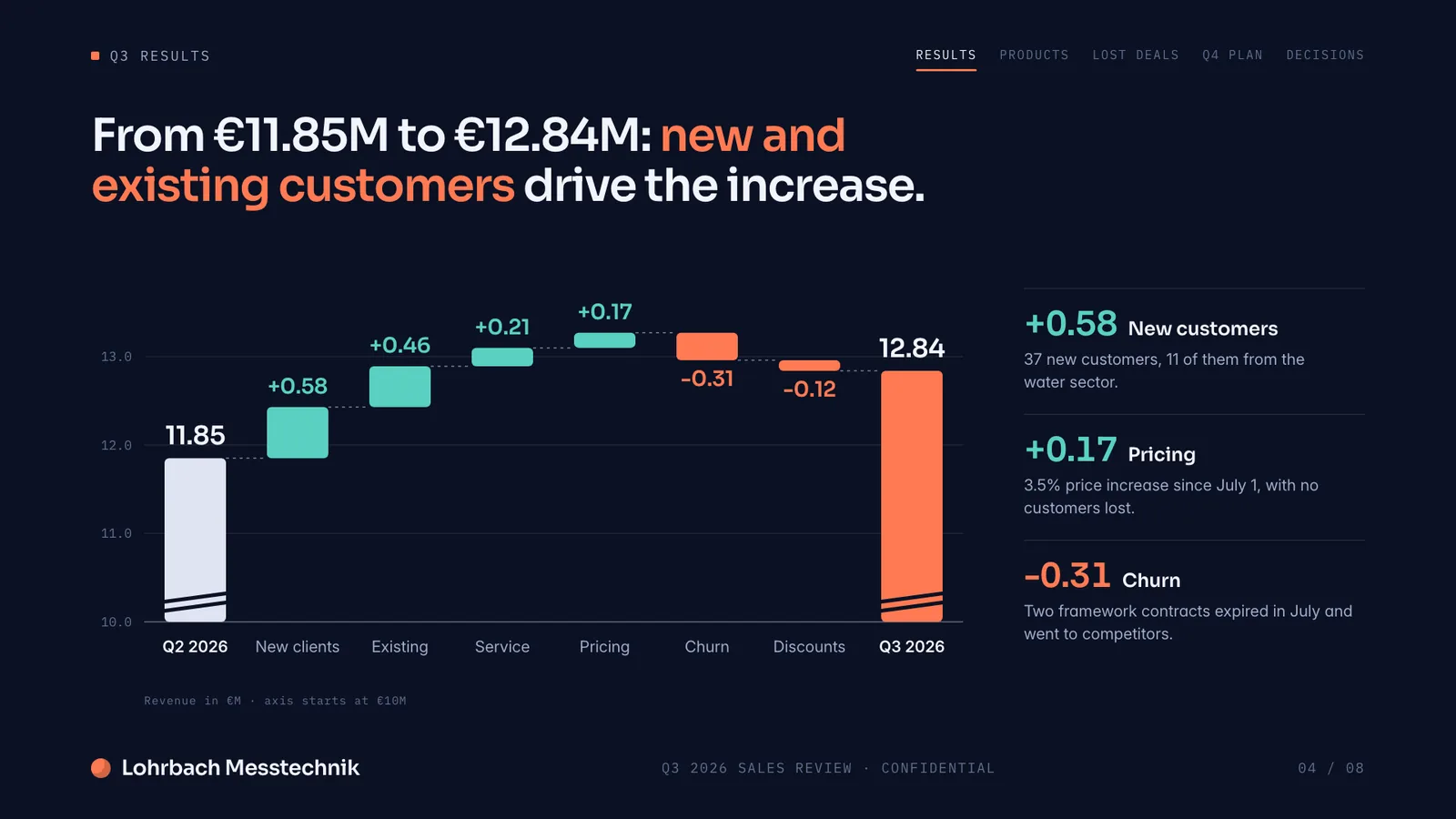
| 4Revenue bridge | From the Q2 to the Q3 revenue by new clients, existing customers, service, pricing and churn |
| 5Products | Three products and their share of revenue, with margin and growth for each |
| 6Lost deals | Five lost deals, the reasons and what we learn |
| 7Plan for Q4 | Four actions with owners and milestones towards the Q4 target |
| 8Decisions | Three approvals we need from the board today |
What you can create this way
The same five steps work for slides and for page documents. The format decides the export.
| Document | Typical format | Office export |
|---|---|---|
| Sales review, board update, pitch | 16:9 slides | PowerPoint (.pptx) |
| Offer, one-pager, flyer | A4 page | Word (.docx) |
| Report, concept, handout | A4 pages | Word (.docx) |
| Budget or financial model | Excel model | Excel (.xlsx) with formulas |
The format is proposed in the plan and can be changed there before the build: A4, 16:9 slides, a custom size or an Excel model. Documents with pages can always be downloaded as PDF, PNG or JPG as well.
The whole process at a glance
Five steps, and you decide at each of them how much you want to steer.
Describe the result
Occasion, audience, length, key figures, tone. Files and links are optional context.
Answer the questions
One click per answer, or let Slaide decide with “I'll take it from here”.
Approve the plan
Check the pages, edit a card or rewrite the plan in one sentence, then start the build.
Watch the build
Pages appear one by one, each one checked in its real render.
Edit and export
Change pages directly or by request, then download PowerPoint, Word, PDF or images.
What to expect, and what not
The limits, so the first result does not surprise you.
FAQ
Anything missing? Ask us
Do I need a file or a template to start?
No. A written brief is enough. Add files only when the document should use your own material, such as a PDF report, a spreadsheet or an existing deck. Slaide plans the structure and designs the pages for your request instead of asking you to pick a template and fill it.
Can I skip the questions and the plan?
Yes. On a question card, “I'll take it from here” lets Slaide answer the remaining questions with sensible assumptions. In the start composer you can also switch planning off before you send the brief. Planning only runs for the first request of a document; later requests change the existing pages directly.
What happens between the plan and the result?
Slaide writes and designs one page after another, and you see each page appear in the page strip. It checks the real render of pages for problems such as text that overflows, clipped text, broken images or weak contrast, fixes what it finds and ends with a review of all pages. The steps are listed in the assistant panel while they happen.
Can I keep working while a document is being built?
Yes. The message box stays open during the build and says “Queue your next request”. A request you send there runs automatically after the current one. You can also stop the run.
What does the free plan include?
1 free document without a credit card. Slaide plans it with up to 12 pages and builds the first 3, and free exports carry a small Slaide mark. Paid plans start at €7.99 a month and build every planned page without the mark.
Which files can I get at the end?
Presentations export as PowerPoint (.pptx), documents in page formats such as A4 as Word (.docx), and every document as PDF, PNG or JPG. If Slaide built an Excel model, you download it as an .xlsx file with working formulas.
Write your brief, Slaide does the rest
Your first document is free: planned up to 12 pages, with the first 3 built.